
Accesserty UI Kit
Accessible Web Components
Accessible components, without tying your UI to one frontend framework.
Free under MIT. Try it in plain HTML.
When the UI Kit is a good fit
Start with accessibility behavior already in place
Tabs need arrow-key navigation. Menus need keyboard controls, and selected states need to reach assistive technology. These interactions are built into the components, giving you a starting point instead of writing them again for each project.
Keep the components when your stack changes
The components use browser-native Web Components, not Vue or React internally, with no runtime package dependencies. Reuse them in plain HTML and supported framework setups; check loading and data/event bindings when changing or upgrading your stack.
Use CSS, not another theme system
Set colors, spacing and borders with CSS variables in your stylesheet. There is no UI Kit theme provider to configure. For finer changes, check the CSS parts exposed by the component you use.
Add components as HTML elements. They handle their own interactions; your app supplies data and decides what happens after each action.
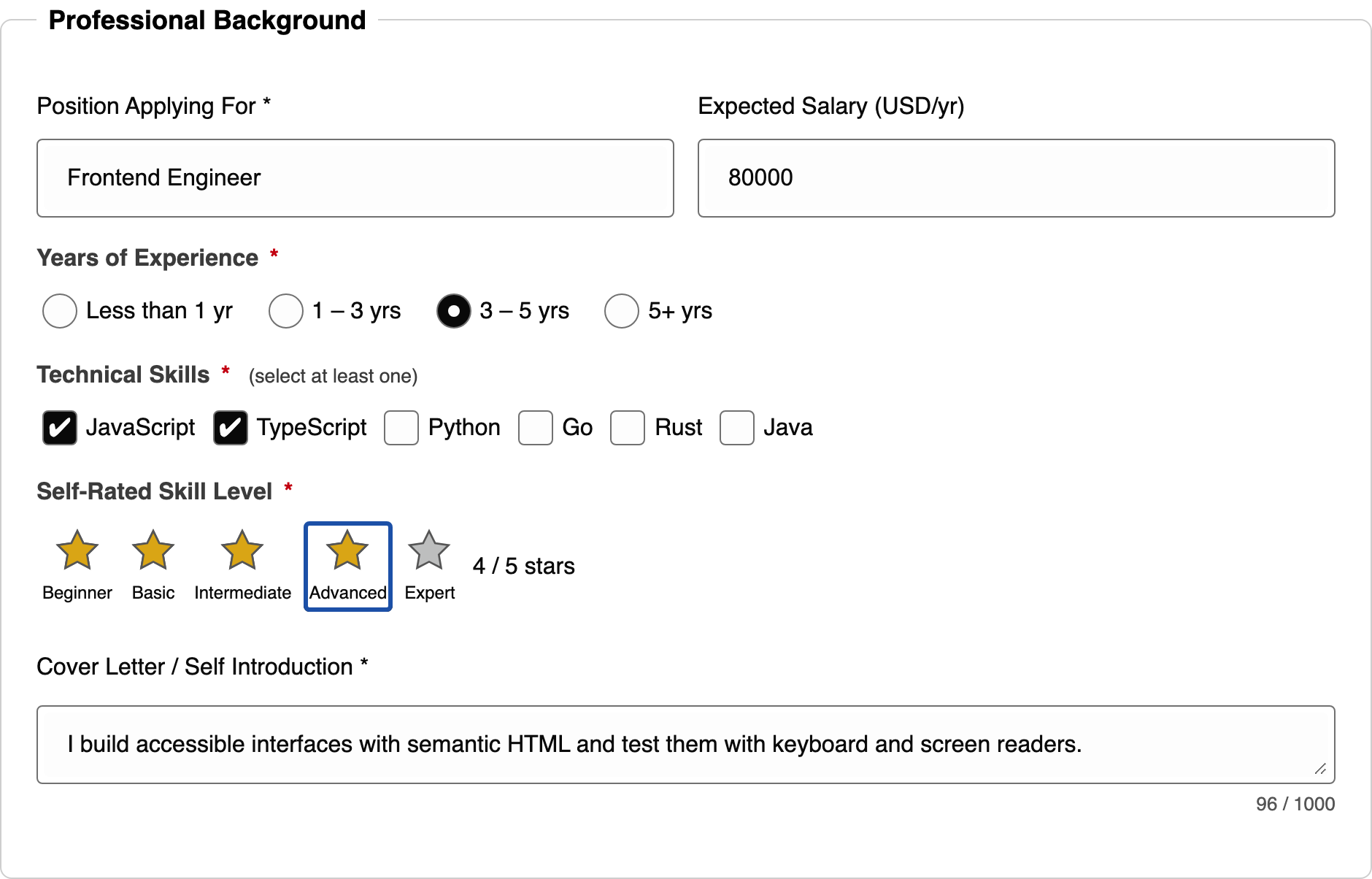
Find the components you need
Choose from 15 components. Each name opens its HTML example on GitHub. To try the interactions or adjust styles first, open the Playground.
Forms and input
- Input
au-input - Textarea
au-textarea - Checkbox
au-checkbox - Radio group
au-radio-group - Switch
au-switch - Rating
au-rating - File upload
au-file-upload
Navigation and selection
- Tabs
au-tabs - Dropdown
au-dropdown - Pagination
au-pagination - Breadcrumbs
au-breadcrumbs - Tree
au-tree
Use native HTML when it does the job. Button, Select and Dialog keep the native button, select and dialog elements, with optional styles; they are not part of these 15 custom components.
Try it in HTML, then add it to your project
Try the tabs in this section, then run the example on your test page. Already using Vue/Nuxt or React/Next? Open the matching setup instructions.
Service information
Try these tabs. Press Tab to reach a tab, use Left or Right Arrow to switch, then press Tab to enter its content.
We help teams review website tasks.
Use the website contact form to ask a question.
The HTML below creates this example.
Plain HTML example
This code loads UI Kit and creates two tabs. Expand the complete HTML below to save and run it as a page; no npm or build tool is needed.
Load the script and add two tabs
<script src="./accesserty-ui-kit.min.js" defer></script>
<h1 id="service-title">Service information</h1>
<au-tabs class="example-tabs" aria-labelledby="service-title">
  <div class="au-tab-panel" slot="panel" label="Services">
    <p>We help teams review website tasks.</p>
  </div>
  <div class="au-tab-panel" slot="panel" label="Contact">
    <p>Use the website contact form to ask a question.</p>
  </div>
</au-tabs>
Download the latest UI Kit JavaScript
Open the complete HTML to save and run
<!doctype html>
<html lang="en">
<head>
  <meta charset="utf-8">
  <meta name="viewport" content="width=device-width, initial-scale=1">
  <title>Service information tabs</title>
  <script src="./accesserty-ui-kit.min.js" defer></script>
</head>
<body>
  <main>
    <h1 id="service-title">Service information</h1>
    <au-tabs class="example-tabs" aria-labelledby="service-title">
      <div class="au-tab-panel" slot="panel" label="Services">
        <p>We help teams review website tasks.</p>
      </div>
      <div class="au-tab-panel" slot="panel" label="Contact">
        <p>Use the website contact form to ask a question.</p>
      </div>
    </au-tabs>
  </main>
</body>
</html>
No tabs showing? Check these steps
Save the complete example as index.html beside the downloaded accesserty-ui-kit.min.js, then open it in a browser. Two tabs should appear, with Services selected; arrow keys switch the tab and its content.
If you only see two paragraphs, check that the JavaScript filename and relative path match the example, and that the browser allows it to run. Base styles are included; this example needs no extra CSS.
This is a plain HTML example. For Vue/Nuxt or React/Next, use the matching setup in this section.
Three steps to get started
Choose the component you need
Choose from the list and preview components and styles in the Playground. Each component name links to its HTML example on GitHub.
Load it on a test page
For plain HTML, download the JavaScript and save the complete example as index.html beside it, then open the page in a browser. For Vue/Nuxt or React/Next, follow the setup below.
Add your content and test again
Use your site's text and data, then connect actions and styles. Complete a real task with the keyboard, such as filling in and submitting a form, and test with a screen reader.
Vue / Nuxt
- Nuxt: copy UI Kit’s dist folder into your project (for example vendor/accesserty/, not public/) and add one module to nuxt.config.ts. No plugin of your own, isCustomElement setting or <ClientOnly> wrapper is needed.
- Vue with Vite: load the components, install the AccessertyVue plugin and use the kit’s isCustomElement in the Vite config. Form components work with v-model, and a group of checkboxes can share one array.
Nuxt: nuxt.config.ts
export default defineNuxtConfig({
  modules: ['./vendor/accesserty/accesserty-ui-kit-nuxt.js']
})React / Next
- React 19: form components have React counterparts (AuInput, AuCheckbox and others) that use value/checked and onChange like native fields. Use the other components directly as au-* tags.
- Next: call defineElements() once in a client component; the server renders the tags and their initial values. With a custom Next server, accordion, tabs and breadcrumbs can also render on the server.
View the Next form integration fixture
The fixture loads a copied dist from vendor/, as a project would. Change the paths to where you keep the files.
Connect your data and make it fit your site
Read values and respond to actions
Read entered values and respond when someone selects an option or changes tabs. Follow the property, event and form examples for the component you use. File upload handles selection; your code handles uploading and server validation.
See data and form examplesStyle it directly with CSS
The sample tabs have an example-tabs class. Add this CSS to your stylesheet to change their colors, without a separate theme configuration. Each component documents its variables and available CSS parts.
.example-tabs {
  --au-tabs-bg: #f5f5f5;
  --au-tabs-selected-bg: #222;
  --au-tabs-selected-text-color: #fff;
}
Preview components and styles in the Playground, then copy the generated CSS. It exports changed variables, not HTML or JavaScript. Replace its example class with your own and apply it to the matching element.
Read the styling guideUse your own text and translations
Replace Services and Contact with your own tab names, and supply field labels and hints. Update component text when your site changes language. Keep your existing translation tools; UI Kit does not translate automatically.
See text settings
Inspect the source, examples and tests
The source, plain HTML demos and tests are available on GitHub so you can inspect the implementation and investigate issues. Check loading and bindings when upgrading your framework, and re-test your own pages after changing content or styles.
Integration fixtures use Nuxt 4, Vue with Vite, and Next 16 with React 19; the React integration needs React 19. These checks cover specific scenarios, not every framework version or complete application.
Components cannot automatically make a whole website conform to WCAG. Test your content and flows for keyboard operation, visible focus, text contrast and mobile layouts, and check them with a screen reader.
Frequently asked questions
To reuse the same accessibility behavior across projects instead of rewriting component internals for each framework. UI Kit uses browser custom elements, not Vue or React internally. Framework loading, data and event bindings still need setup and checks after upgrades.
Start with plain HTML, or follow the Vue/Nuxt and React/Next examples above. Nuxt needs one module, and form components work with v-model; React 19 has matching form components. The server renders the tags and initial values, and internal controls are built when JavaScript runs in the browser; accordion, tabs and breadcrumbs can render on the server. The test documentation lists the versions and scenarios checked.
The component JavaScript has no runtime package dependencies and includes base styles. The plain HTML example needs no npm or build tool; customize it with CSS variables. Shared styles for native buttons, selects and dialogs are optional. Developing and testing UI Kit itself still uses tool dependencies.
Yes. UI Kit’s dist/components/ has 15 single-component files (regular and minified), each with the shared code it needs, so you can copy only the components you use. The website download is the full bundle; when you copy single components, your project manages their updates.
Yes. Your content, colors and integration affect the result. Complete real tasks with the keyboard, check visible focus, contrast and mobile layouts, and test with a screen reader. Component tests do not establish whole-site WCAG conformance.
Yes. UI Kit is free to use and modify under the MIT License. Include the copyright and license notice when distributing the code. The latest source, full license terms, demos and tests are on GitHub.